How to Get Your Stripe API Keys
Learn how to retrieve your Stripe publishable and secret API keys and connect Stripe to your BeatMantra Direct Payments page.

Overview
You can connect your own Stripe account to BeatMantra using the Direct Payments settings. To get started, you need your Stripe Publishable Key and Secret Key.
This guide explains how to find those keys in Stripe and where to enter them on BeatMantra.
Step 1: Sign in to Stripe
Open the official Stripe Dashboard and sign in to your account.
Step 2: Find Your API Keys
From your Stripe Dashboard, open the Developers section and select API keys. Depending on your Stripe Dashboard layout, you may find this under Workbench or Developers.
You can also open the API keys page directly:
Step 3: Copy Your Publishable Key
Find the Publishable Key on the API keys page. It typically begins with pk_test_ in test mode orpk_live_ in live mode.
Copy the key and keep the Stripe Dashboard open while you complete the setup on BeatMantra.
Step 4: Reveal Your Secret Key
Find the Secret Key section and use the available reveal or view control to access your key. Stripe may require additional verification or confirmation.
Secret keys typically begin with sk_test_ in test mode or sk_live_ in live mode.
Copy your Secret Key and keep it private. Never share it publicly or include it in screenshots or support messages.
Step 5: Open BeatMantra Direct Payments
- Sign in to your BeatMantra producer account.
- Open your Producer Dashboard.
- Navigate to your Direct Payments settings.
- Select Stripe, if it is available in your settings.
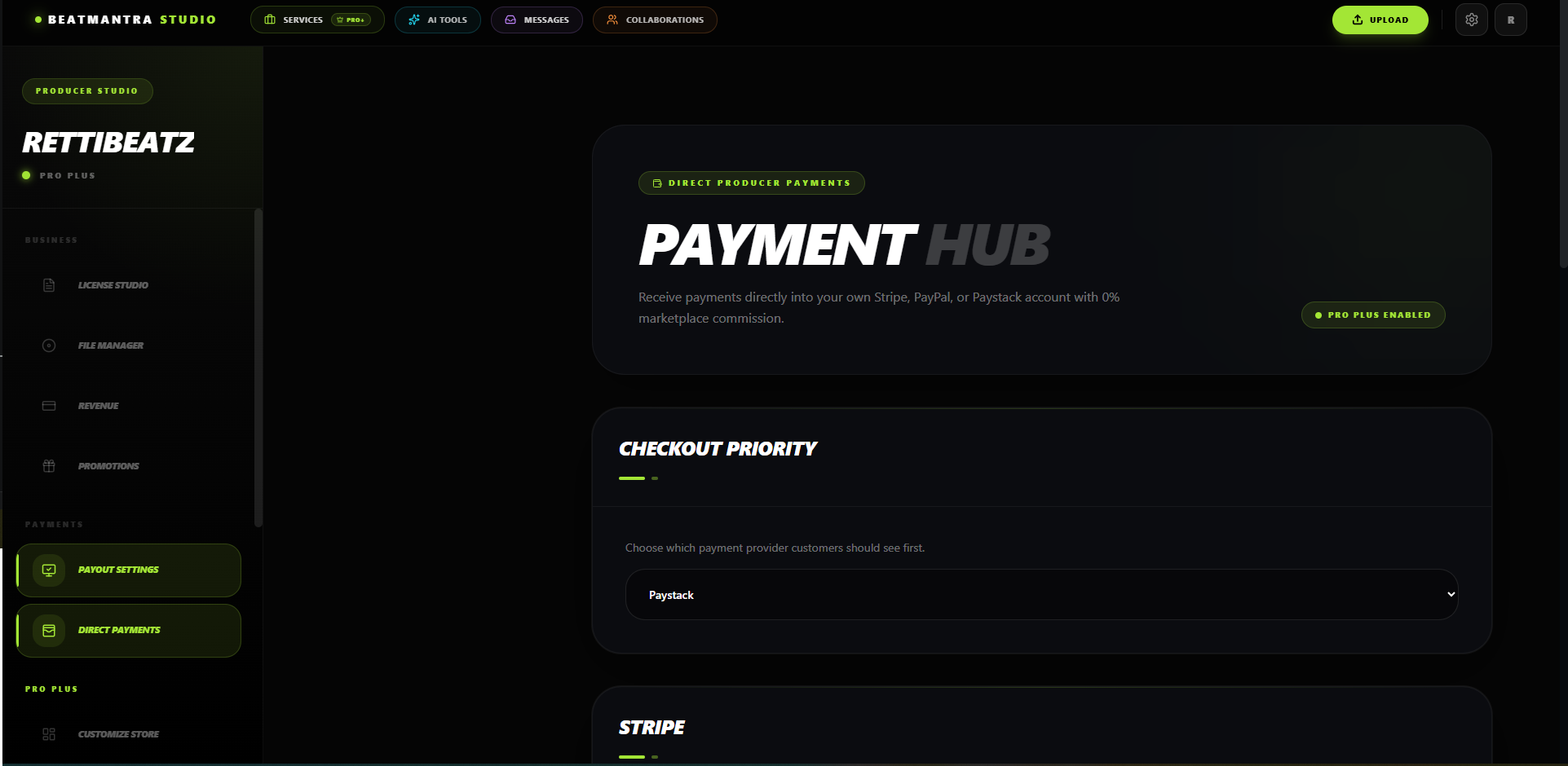
Step 6: Enter Your Stripe Keys
Enter the keys you copied from your Stripe Dashboard into the corresponding fields on the BeatMantra Direct Payments page.
- Publishable Key: Paste your Stripe Publishable Key into the Publishable Key field.
- Secret Key: Paste your Stripe Secret Key into the Secret Key field.
Check that both values are complete and have not been accidentally truncated or copied with extra characters. Save your settings.
Step 7: Check Your Configuration
After saving, check whether BeatMantra accepts your Stripe configuration. If you receive an error, verify the keys and check that you copied them from the correct Stripe account and environment.
Use test keys for testing only. Before accepting live payments, make sure your Stripe account and BeatMantra configuration are ready for live transactions.
Test Keys vs. Live Keys
- Test keys: Used for test transactions and development.
- Live keys: Used for real transactions when your account and integration are enabled for live payments.
Do not mix test and live keys. Both keys must correspond to the intended Stripe environment.
Security Tips
- Never share your Secret Key with anyone.
- Never publish Secret Keys in frontend code or public repositories.
- Do not send API keys through support messages.
- Keep your Stripe account secure.
- If you believe a Secret Key has been exposed, rotate it in Stripe and update your BeatMantra configuration.
Having Trouble?
If your keys are rejected, confirm that you copied both keys correctly and that they belong to the same Stripe account and environment.
If the problem continues, contact BeatMantra Support with the error message. Never include your Secret Key in your support request.
Related Articles
BeatMantra Payouts
Configure your payout settings before publishing your first beat.
Direct Payments
Learn how eligible producers configure direct payment providers for their BeatMantra storefronts.
Discount System
Create promotional discounts and coupon codes for your storefront.
Storefront
Customize your BeatMantra storefront and understand how customers experience your store.